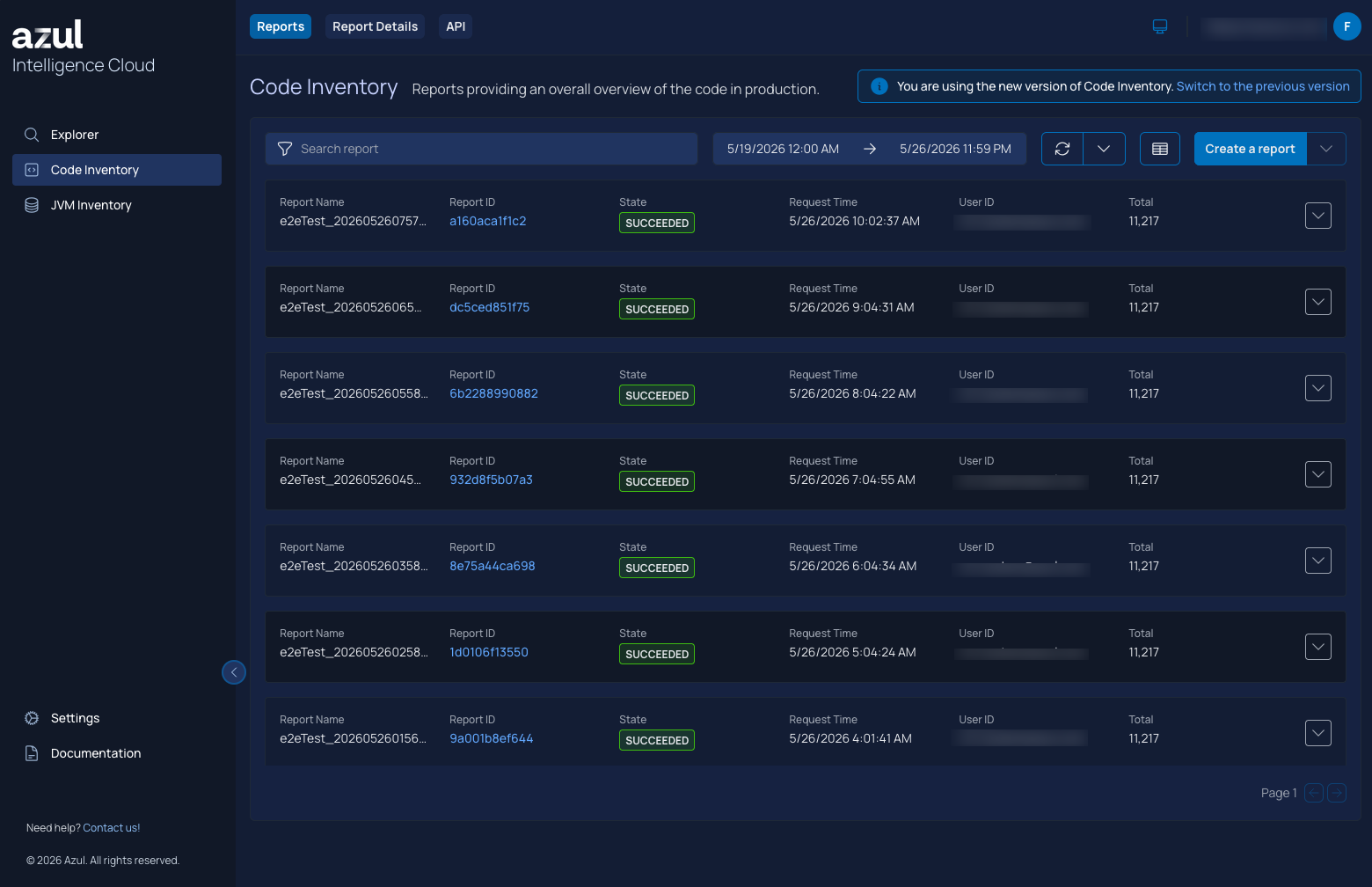
Code Inventory Reports in the Web UI
Code Inventory Reports can be generated:
-
With an API call, as described here. Such an API call, returns a
reportIDthat you can use to either download the report with the API, or in the web user interface. -
With the "Create a report" button in the web user interface.
-
Copy the ID of the report, and once it reaches the
SUCCEEDEDstatus, you can navigate to the visualization page and fill in the ID.
-
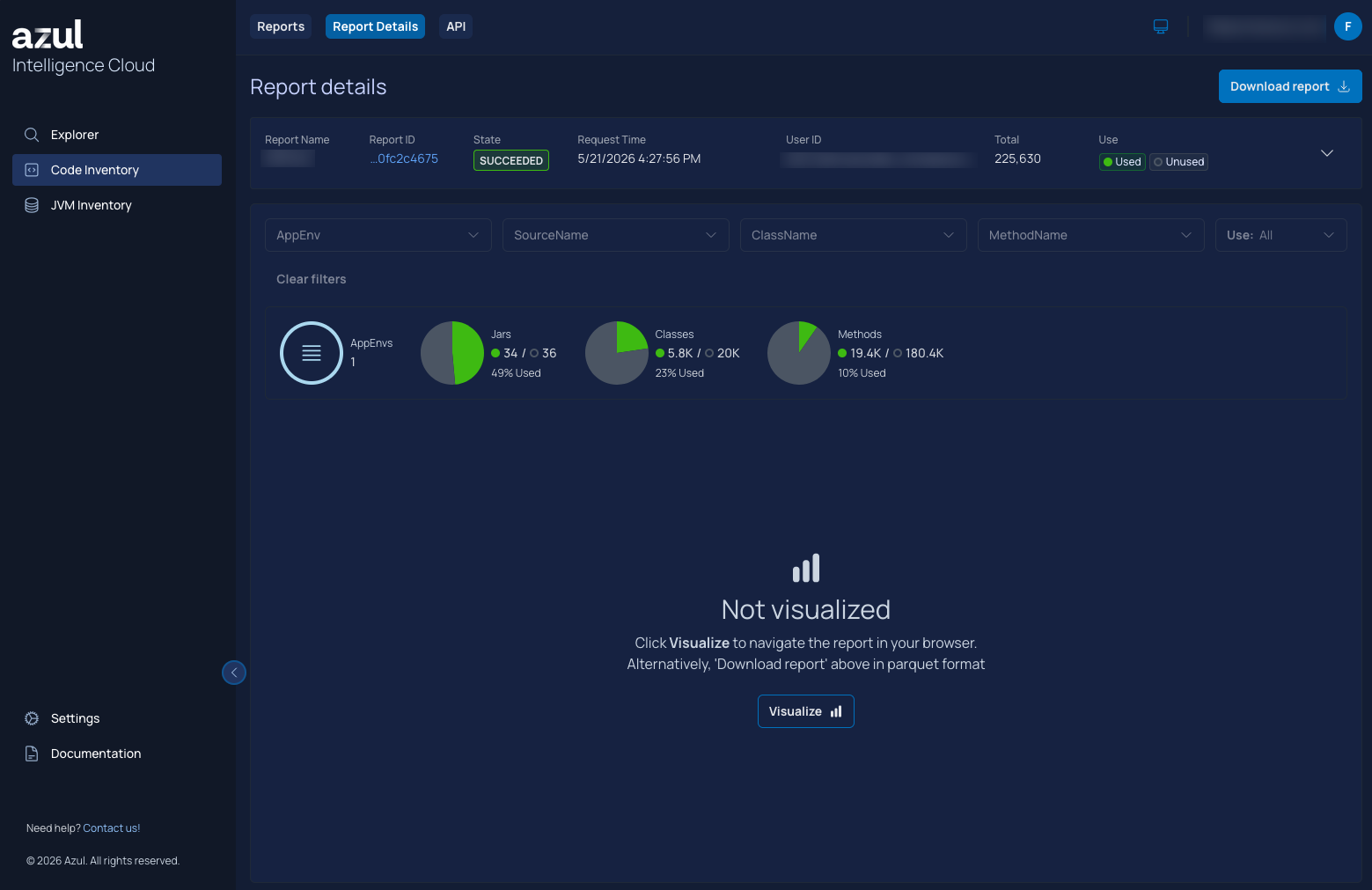
You get a summary of the report and the message "Not visualized" with a "Visualize" button. Clicking it triggers the background processing.
-
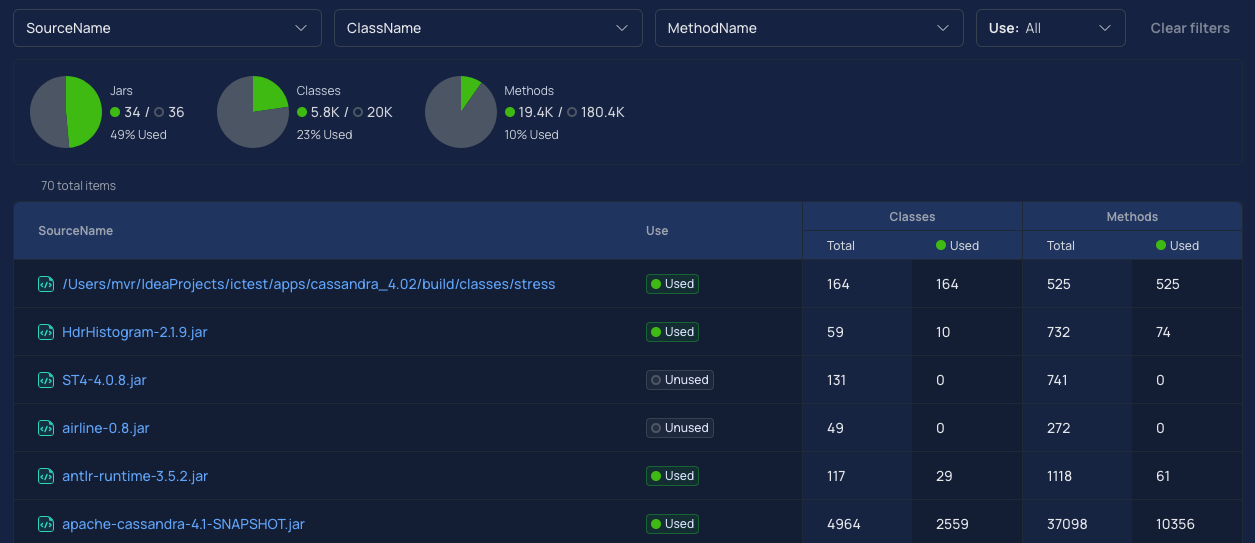
Once the background processing is complete, the interactive visualization loads automatically. In this view, you can use the drop-down filters to adjust the data shown in the visualization. You can also click on the values in the first column in the table to dive deeper in the code inventory report.
|
Note
|
When you prefer to use the previous layout, you can use the link on the right-top of the page. |
