Focused Code Inventory
Focused Code Inventory lets you choose which packages the Intelligence Cloud Agent reports to Code Inventory. By default, everything is denied: a JVM reports nothing until a policy allows it. Most classes that a JVM loads belong to third-party libraries, frameworks, and generated code. Policies let you concentrate Code Inventory on your own code. The Agent applies your policies before it sends anything, which reduces network traffic and processing.
You manage Focused Code Inventory in the Web UI > Settings > Focused Code Inventory.
|
Important
|
Upgrading a JVM to Agent 1.3.0 or later changes what it reports. Older Agents report everything. Agent 1.3.0 or later collects only what your policies allow. Code in a package that no policy covers isn’t collected, so it doesn’t appear in Code Inventory reports. Review your policies, starting with the default policy, before you upgrade. |
Requirements
-
Intelligence Cloud Agent 1.3.0 or later. Older Agents ignore the policies and keep reporting everything.
-
The
AppEnvtag on your JVMs. Policies match against its value, see CRS Runtime Instance Tags. -
The Admin role in the Web UI, to manage the policies.
While you run both older and newer Agents, Code Inventory reports combine unfiltered data from the older Agents with filtered data from the newer ones.
How Focused Code Inventory Works
When a JVM starts, Azul Intelligence Cloud sends the policies that match its AppEnv tag to the Agent. The Agent then collects only what these policies allow.
| Term | Meaning |
|---|---|
Base policy |
Applies to every JVM. It collects nothing, and you can’t change or delete it. |
AppEnv policy |
Adds packages to collect for the JVMs whose |
Package |
A package prefix in an AppEnv policy, such as |
Classes |
Collects the class loads of the package. |
Classes & Methods |
Collects the class loads and the first call of each method of the package. |
A JVM collects the union of all policies that match its AppEnv tag. If no policy matches, the JVM collects nothing.
JDK classes, Agent internals, and generated proxy and lambda classes are never collected, whatever your policies say.
There is no option to allow all code, and there are no exclude rules. You list the packages to collect, and the base policy leaves out everything else. To collect broadly, add the top-level packages that your applications use.
Policy changes take effect when a JVM restarts.
Matching rules
| Rule | AppEnv name | Package |
|---|---|---|
Matches |
Contains |
Starts with |
Case |
Case-sensitive |
Case-sensitive |
Format |
The value of an |
Slash form, such as |
Length |
Up to 256 characters |
Up to 256 characters |
Not allowed |
An empty value, or |
Dots, whitespace, |
-
End a package with
/to match the package and its subpackages. -
In a package,
*is a literal character, socom/example/*matches nothing. Usecom/example/instead. -
A policy needs at least one package, and each package can appear once per policy.
-
Each AppEnv name can have one policy. If you add a second policy for the same name, Azul Intelligence Cloud merges its packages into the existing policy.
Because matching is Contains, the value prod also matches an AppEnv such as preprod. Use the delimiters of your naming scheme to narrow the match. For the AppEnv aws-uswest2-jobsearch-prod, the value jobsearch targets the application, and -prod targets the environment.
Classes and methods
For each package, you choose Classes or Classes & Methods. Classes & Methods reports both used and unused methods, on top of the classes. It sends more data than Classes, so choose it for the packages where you need method detail.
Method data also depends on Agent settings. notifyFirstCall=true reports used methods, and adding sendClassMethods=true reports unused methods too, see Reported in Code Inventory. Without notifyFirstCall=true, the Agent doesn’t report which methods run, whatever your policy says.
Where packages overlap, the broader Classes & Methods package covers the narrower ones. If the broader package is Classes and the narrower package is Classes & Methods, both apply. The broader package still collects classes, and the narrower package collects classes and methods.
The diagram shows both cases. The narrower package sits inside the broader one, for example com/example/payments/ inside com/example/.
flowchart LR
    subgraph broad2["Broader package"]
        bnode2["Classes"] ~~~ narrow2
        subgraph narrow2["Narrower package"]
            nnode2["Classes & Methods"]
        end
    end
    broad2 --> result2["Collected: broader at class level, narrower at class and method level"]
    subgraph broad1["Broader package"]
        bnode1["Classes & Methods"] ~~~ narrow1
        subgraph narrow1["Narrower package"]
            nnode1["Classes"]
        end
    end
    broad1 --> result1["Collected: both at class and method level"]
Default Policy
Without a policy, JVMs collect nothing. To keep data flowing, Azul Intelligence Cloud creates a default policy when it enables Focused Code Inventory. The default policy applies to all environments (*) and collects classes, not methods, of common top-level packages. These include com/, org/, io/, net/, jakarta/, and country-code packages such as de/ and uk/. Open the policy in the Web UI to see all its packages.
The default policy is a starting point, not a recommendation. You can edit or delete it, and Azul Intelligence Cloud doesn’t restore it. Review it for your applications:
-
Code in a package that no policy covers isn’t collected. For example, code in a package that starts with
myapp/isn’t collected until you addmyapp/. -
The default policy doesn’t collect methods. To get used and unused methods, add a policy that collects Classes & Methods for the packages that you need.
-
Replace the default policy with policies for your own packages, and keep them up to date when your applications add packages.
Managing Policies in the Web UI
Open the Web UI > Settings > Focused Code Inventory. You need the Admin role.
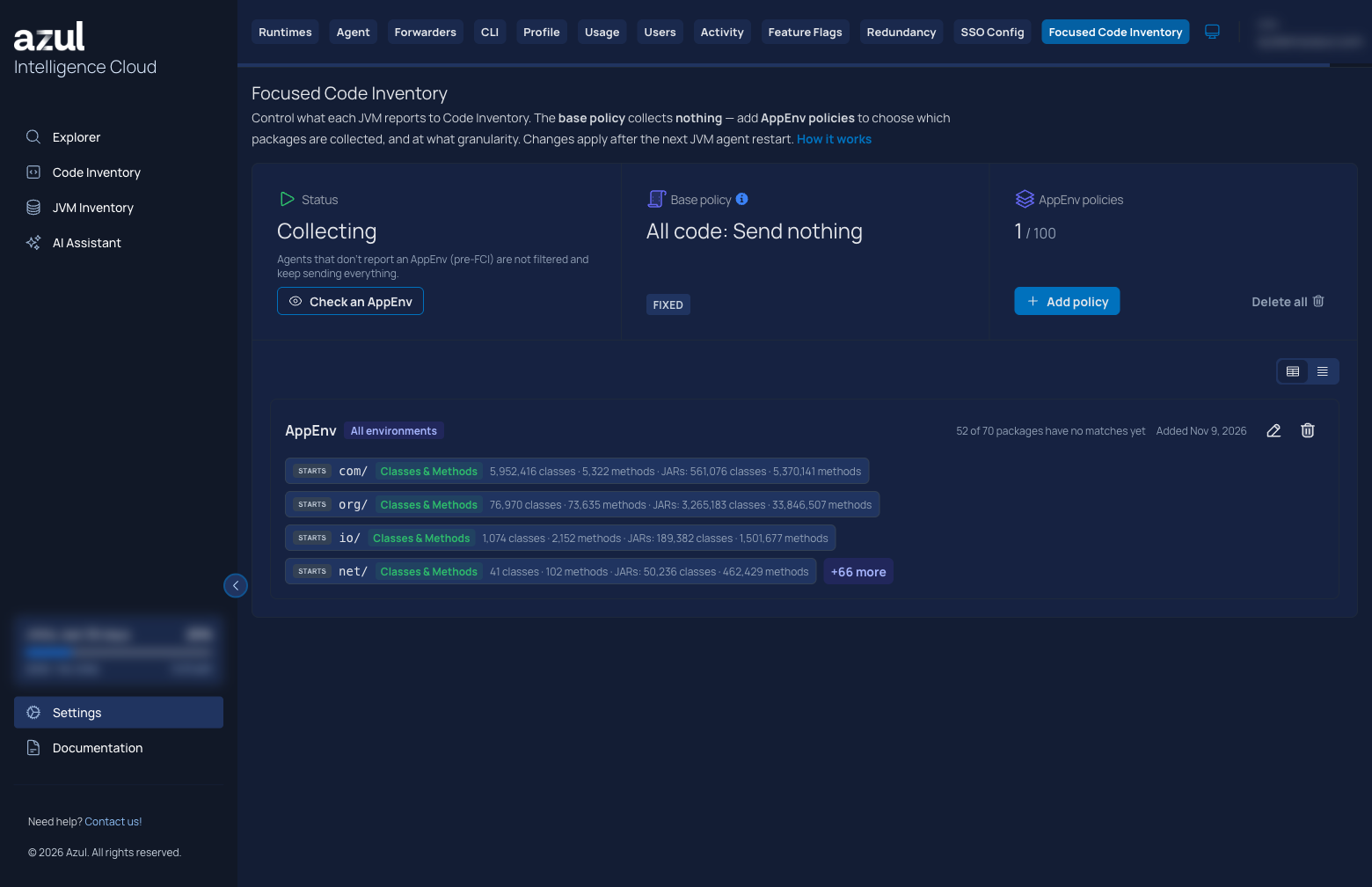
The page shows:
-
Status: "Collecting" when at least one policy exists, otherwise "Not collecting". Use "Check an AppEnv" to see what an AppEnv collects.
-
Base policy: "All code: Send nothing". It is fixed.
-
AppEnv policies: the number of policies out of the limit, with the "Add policy" and "Delete all" buttons.
-
A card for each policy, with its AppEnv name, its packages, and counters. Switch between "Cards view" and "Tree view", and use the "Filter policies" field to search.
The example shows one policy for all environments that collects Classes & Methods.
Adding a policy
-
Select "Add policy".
-
Enter an AppEnv name, or select "All environments".
-
Enter a package, and choose "Classes" or "Classes & Methods". Select "Add package" for more packages.
-
Select "Save policy".
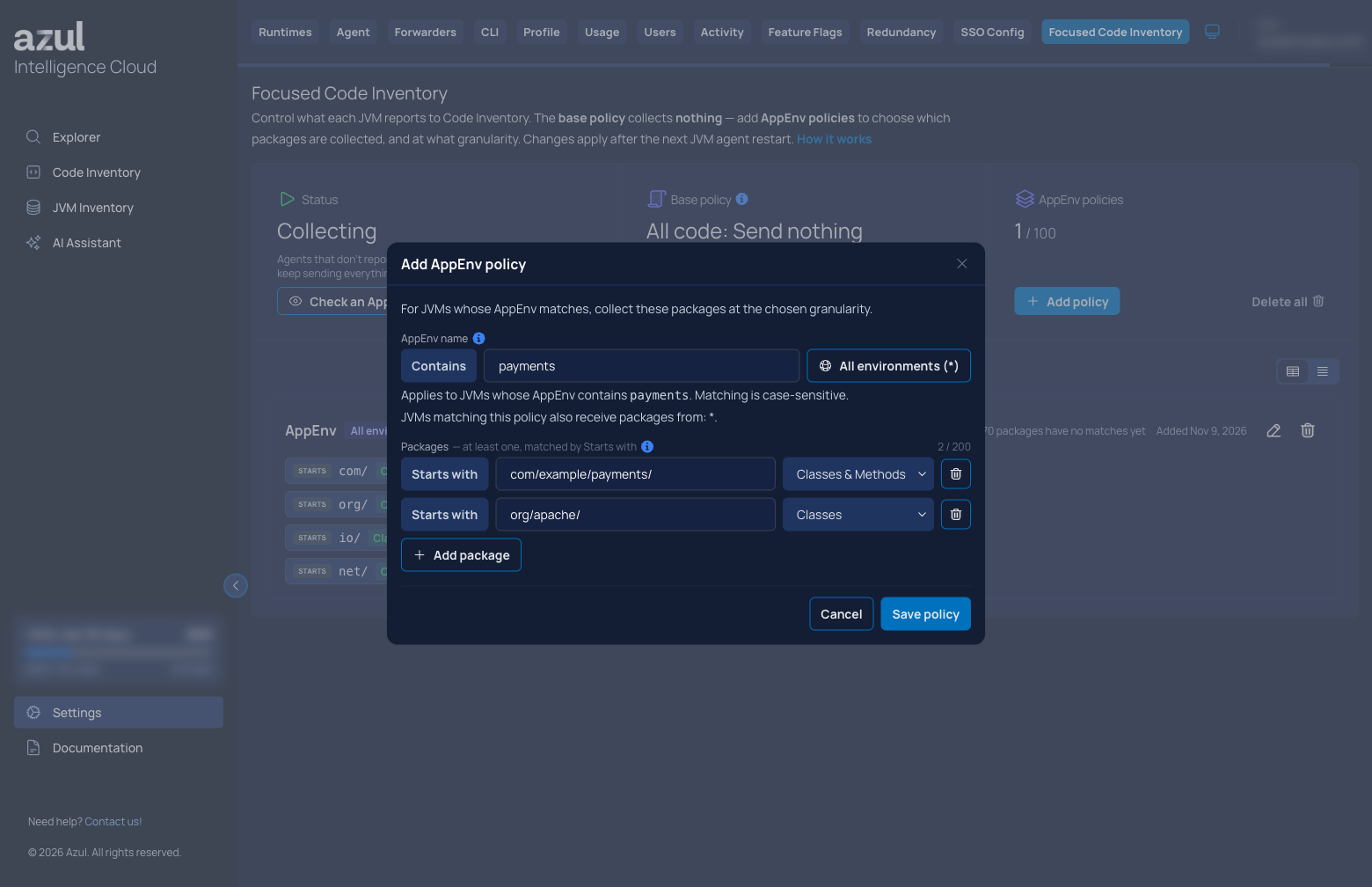
If a policy for the AppEnv name already exists, Azul Intelligence Cloud merges the packages into it and shows a message. The dialog also warns you when a broader package already covers a package, and when the AppEnv name overlaps with another policy.
Editing and deleting policies
Use the pencil icon of a policy to edit it, and the trash icon to delete it. "Delete all" removes all policies after you confirm.
You can’t disable a policy. Delete it, and add it again when you need it again.
If you delete all policies, JVMs that report an AppEnv tag collect nothing after their next restart. The Code Inventory page then shows a banner with a link to "Configure Focused Code Inventory".
Checking what an AppEnv collects
Select "Check an AppEnv" and enter an AppEnv value, for example aws-uswest2-jobsearch-prod. The dialog lists the policies that match and the packages that a JVM with this value collects. It also shows packages that a broader package covers. The result uses your current policies, not live data.
Checking whether your packages match
Each package shows how many classes and methods it let through. After "JARs:", it shows how many classes and methods in the contents of loaded JAR files the package matched. The counters are cumulative, not limited to a time range.
"No matches yet" means that nothing matched since you added or last changed the package. A policy also shows how many of its packages have no matches yet. The counters grow after JVMs restart with the policy, so wait for the restart before you judge a package. A package that keeps showing no matches can have a typo, a wrong letter case, or no JVM loads its classes.