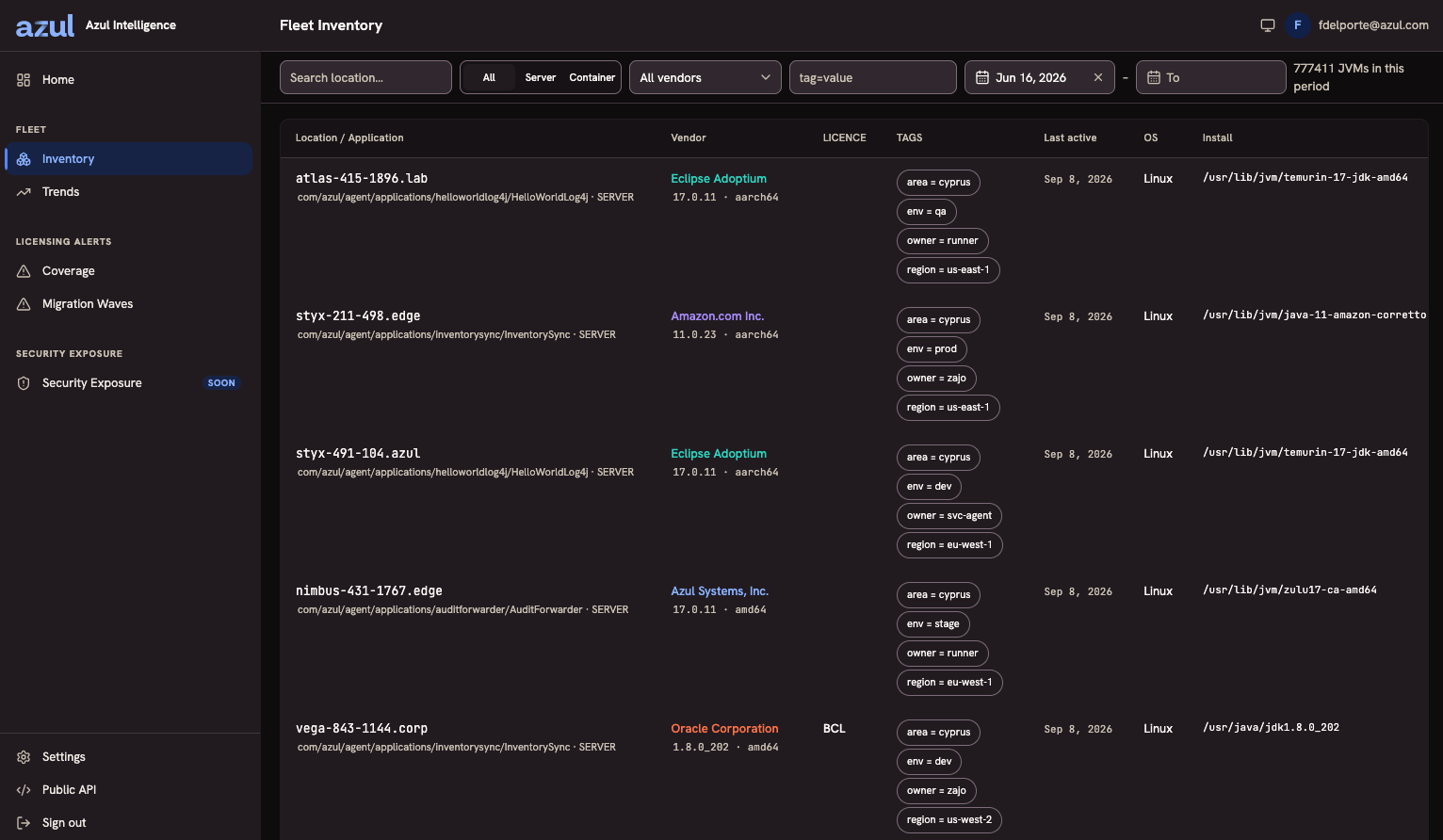
Fleet Inventory
Your Agents and your AMT scans deliver observations. Your installation folds them into one record per machine, holding every JVM installation found on it, and the Inventory screen is that estate, filterable and sortable.
Both Admins and Members read everything on this page.
Reading the List
Every machine your estate reports appears as one row. The pagination under the list states how many machines fall in the period you are looking at, as "1–20 of N Groups", so you always know how much of your estate is in view. A machine often holds more than one JVM installation, so the row says how many it holds.
Where a machine holds several installations, the vendor, version, license, and install directory cells show one value and count the rest as "+N", with the full set on hover. Vendors are listed by replacement risk, so the riskiest vendor on the machine leads; while the list is filtered by vendor, the filtered vendor leads instead.
| Column | What it tells you |
|---|---|
Host |
The host or container the machine reports, with the applications observed running on it underneath. |
System |
The last segment of the machine’s system identifier, enough to tell apart two machines that report the same host name. Hover the row to copy the full identifier. |
Vendor |
Who ships the runtimes on the machine, with version and architecture underneath. Each vendor is a separate support relationship. |
License |
The license families of the machine’s installations. Undetermined where an Oracle, Sun, or unknown-vendor installation has no license determined; empty where there is no Oracle license to look for, such as a machine holding only Azul builds. See The License Column. |
Tags |
The machine’s effective tags, as key and value pairs. See Where tags come from. |
Last active |
The most recent observation of the machine in the period. |
OS |
The operating system it runs on. |
Install |
The directory the installation sits in on the host. |
Sort by Host, Vendor, Last active, or Install.
Open a row to see the machine: its installations, ten to a page, with each one’s vendor, version, path, and license, followed by its activity over time.
Filtering
The controls across the top narrow the list:
-
Search location matches the host or container name.
-
All / Server / Container narrows by location type.
-
Any vendor narrows to machines with any of the chosen vendors installed. Several vendors widen the list.
-
Any tag filters by tag, either on a key alone or on a key and value. Values of one key widen the list, and different keys narrow it.
-
From and To bound the observed date range.
Filtering reads exactly the same resolved values as the list shows, so a filter never returns a record whose displayed value is something else.
Two combinations carry their weight. To find every machine in one location with a non-Azul JDK, type the location in Search location and pick each other vendor in Any vendor. To find every machine a given team owns, filter on the tag the team’s Forwarders carry, for example team=payments.
Where tags come from
A machine’s tags come from two places. An Agent can report tags with each JVM it watches; for each key the latest observed value wins, and a later report that leaves a key out keeps its last value. An Admin can also set tags on a Forwarder, and those override Agent tags with the same key. See Tagging a Forwarder.
A machine takes its Forwarder tags from one Forwarder only: the one that delivered its newest observation. When a machine moves to another Forwarder, it carries the new Forwarder’s tags from then on.
Forwarder tags are resolved when you read the inventory, so a tag filter on a key and a value matches the tag’s current value, never a value it held earlier.
What Makes One Record
One row is one real machine, however many times and through however many sources your estate observed it.
A machine is identified by its system identifier and by nothing else. Both collectors report the system-identification attributes the operating system already maintains, and your installation turns those into one machine identifier. An installation on that machine is identified by its normalised install directory.
Three consequences are worth knowing, because each one shows up in the inventory:
-
Merging is not a step that can fail. Two observations that carry the same identifier are one machine by construction. There is nothing to detect after the fact, nothing to reconcile, and no window in which a record disagrees with the observations behind it.
-
An AMT scan and an Agent report of the same machine are one row. That is what the machine identifier exists for. Neither collector mints it, and neither knows what the other sent: they match because they independently read the same values from the same operating system.
-
Vendor, version, architecture, and operating system are attributes, not part of identity. A vendor string spelled differently on two occasions, or an OS name that moved on an upgrade, does not split one machine into two rows. Replacing one vendor’s JDK with another’s in the same directory keeps the installation and changes its vendor.
An observation that carries no readable machine identity stands as its own record rather than being guessed at from a hostname. That over-states the estate slightly and it is visible; a wrong guess would merge two machines and hide an installation, which is neither.
A run is one observed execution: the Agent reports one per JVM start. An AMT scan creates no run, because a disk scan has no process.
How Applications Are Named
The Agent reports what it can see about each application a JVM hosts, and your installation turns that evidence into the name you read. Where a recognised wrapper or framework launched the JVM, the name carries its prefix, so a Spring Boot service reads as springboot: <name> and a Tomcat web application as tomcat: <context>. A JVM launched through the Java Service Wrapper carries `tanuki: ` in front of whatever the rest resolves to. A plain Java launch has no prefix and keeps its main class.
Where no friendlier name can be read, the name falls back to the artifact or context it came from, and then to the main class. It is never blank and never invented.
Deep identification is the Agent’s job and nothing else’s. AMT reports what AMT observes, and a scanned installation carries no application name. Deep identification is on by default in the Agent. You can turn it off with the Agent option disableDeepIdentification=true, but we strongly recommend keeping it on, because without it your applications are named only by their main class. It applies to new observations only: the name is derived when an observation is ingested and stored with it, so existing data is not re-identified, and coverage grows from the day you deploy an Agent version with deep identification rather than appearing retroactively.
The License Column
Your installation derives the license of each observation from the vendor, the VM name, and the version it reports, at the moment it ingests the observation, and stores the result with it. It never copies a license out of a scan, because a scan reports every Azul installation under one license whether or not that is true of the product.
| Value | Meaning |
|---|---|
|
An Oracle commercial license family, derived from the publisher and the Java version. A Sun Microsystems build always counts as commercial. For an Oracle-published build, the VM name must carry the HotSpot trademark to count as commercial. |
|
An Oracle-published build whose VM reports itself as OpenJDK. Oracle ships those under GPLv2 with the Classpath Exception. |
Undetermined, shown as Unclassified in Coverage |
No license determined for an installation that could have one: an Oracle or Sun build, or an installation of unknown vendor. One state, not several: an installation whose version could not be read and an observation carrying no evidence read the same way. An installation from another vendor, which has no Oracle license to find, shows no value. |
The column is labelled as a historically observed license: each installation’s license is chosen by priority among its stored observations, and may belong to a previous JDK at the same path. Two properties matter when you read it:
-
These are version boundaries, not dates. A classified installation does not change family as time passes, because the terms attach to a binary release. For example, Java 8 moves from
BCLtoOTNat update 211, and Java 17 and 21 move fromNFTCtoOTNafter update 12. -
Across an installation, a determined value is never erased. An observation carrying no evidence cannot undo a conclusion an earlier one supported, and the outcome does not depend on the order observations arrived in.
Deriving a license never rewrites the vendor, which is a separate fact. An installation published by Sun Microsystems reads with that vendor and an Oracle-family license, rather than having its vendor quietly folded into Oracle’s.
Unclassified installations are shown in Coverage as an ordinary row at the same prominence as a named family. On an estate no scan has reached, unclassified is the whole number, and hiding it would make an unexamined fleet read as a clean one.
System-Wide or Bundled
Whether an installation belongs to the machine or ships with one application is the axis remediation planning works along: a system-wide JDK is yours to remove, a bundled one is somebody else’s to replace.
AMT states it directly. Its reports carry the property, and where two AMT observations of one installation disagree, bundled wins.
The Agent does not report it, so an Agent-observed installation is classified by its install directory against a list of known system-wide locations. The path is compared in lower case, without a drive letter, and a location counts only when the path starts with it, on a whole directory name:
-
On Windows, under
Program FilesorProgram Files (x86):Java,Zulu,Microsoft\jdk(with an optional version suffix),Eclipse Adoptium,BellSoft,Amazon Corretto, andSemeru. -
On Linux:
/usr/lib/jvm,/usr/lib64/jvm,/usr/java,/opt/ibm,/opt/zulu,/opt/java,/opt/jdk*,/opt/jre*, and/usr/jdk*. -
On macOS:
/Library/Java/JavaVirtualMachinesand/System/Library/Java/JavaVirtualMachines.
An unrecognised location reads as bundled, and so does an absent one. That fixes the direction of the error deliberately: an installation in a directory the list does not name is surfaced for review rather than placed in a removal wave. The cost is real and worth knowing, because other common locations read as bundled, /home/<user>/.sdkman/candidates/java/… among them.
The path classification is made when an observation is ingested and stored with it, so an extended list applies to observations delivered afterwards and does not change those already stored. An installation’s classification is then read from its own evidence: AMT’s statement where it exists, and otherwise the path classification of its latest observation.
How Far Back the Inventory Reaches
Nothing ages out. Observations are kept in the event database, and nothing deletes them on a schedule. There is no retention window and no purge, so no figure in a report changes as time passes and no record leaves the inventory because it got old. The only change an observation can receive after it is stored is a better machine identity, when a later delivery of the same run supplies stronger evidence.
A record exists for exactly as long as an observation of it does. That is why the dataset is not trimmed: deleting old observations would not shorten a record’s history, it would take the installation out of the fleet, there being nothing else the record is made of.
What a screen shows is bounded by the window it asks for, which is the date range on this page and the period selector on Trends, not by anything the product discarded. A query over an 18-month lookback returns 18 months, if your installation has been running that long.
Disk grows accordingly. Every retained year adds its observations to the single DuckDB file at EVENTS_DB_PATH, and the file does not shrink when blocks inside it are freed, because DuckDB reuses them. Reclaiming disk is a deliberate Operator action, an export with enough temporary space, rather than something the product does behind you. The ljvmi_dataset_native_bytes metric tracks the size. See Storage Locations, Monitoring and Health, and Backup and Restore.
Getting the Data Out
The integration API covers the inventory with the same pagination and the same filters as this screen. Inventory is read-only on every surface, because it is a reduction over the observations your estate delivered and there is nothing to write. See The Integration API.